AI-native SaaS UI is a category in real-time invention. Unlike traditional SaaS, where the interface surfaces records, settings, and reports, AI products surface outputs — text, code, decisions — that are probabilistic, streaming, and sometimes wrong. That changes nearly every design convention: loading states become streaming renders, errors become hedged uncertainty signals, and history becomes a primary navigation model because the conversation IS the workflow. We analyzed 13 AI-native SaaS products — assistants, code editors, and automation tools — to map how the category is building its own UI language from scratch.
We analyzed screenshots and user flow diagrams across 13 AI SaaS products in the SaaS Boat library.
 ChatGPT
 Claude Code
 Cursor
 Windsurf
 Cline
Cline Gemini CLI
 Glean
Glean Sema4.ai
 Basis
Basis Merlin
 Anything
 Qodo
QodoWhat Makes AI SaaS UI Different
Traditional SaaS interfaces are deterministic: you click Save, the record saves. You run a report, you get data. AI interfaces are probabilistic: you ask a question, you get an answer that might be right, might be incomplete, might have confidently stated something false. That fundamental difference — output uncertainty — requires UI conventions that don’t exist in the standard SaaS playbook. Streaming text renders require new loading metaphors (the typing cursor, the incrementally appearing paragraph). Confidence levels need signaling (hedged language, source citations, refusal states). Context limits need visibility so users understand why the model “forgot” something from earlier in the conversation.
The second major shift is navigation model. In traditional SaaS, navigation is structural — you move between sections of the product. In AI-native tools, navigation is temporal — you scroll through conversation history, switch between past sessions, or branch off from a previous output. The left sidebar of every major AI assistant is essentially a document library where each document is a past conversation. That’s a UI convention being invented and standardized in real time, across an entire product category, without a prior template to follow.
13 AI SaaS UI Examples
General AI Assistants
1. ChatGPT — Conversation history as the primary navigation surface
ChatGPT’s left sidebar is a chronologically organized library of past conversations, each titled by what was discussed. The entire navigation model is temporal: you find a previous thread the way you’d find a recent document — by recency, title, or search. OpenAI has leaned into treating conversations as persistent objects with memory, not ephemeral sessions that disappear. The implication for users is that conversations accumulate value over time, which shifts how people use the product from one-off queries to ongoing working relationships.
2. Claude Code — CLI-native rendering with code and diff outputs as first-class elements

Claude Code runs in the terminal — there is no browser, no dashboard, no app chrome. The interface is text, rendered with markdown formatting for code blocks, diffs, and tool outputs. That’s not a limitation, it’s a design choice rooted in developer trust: command-line tools feel more transparent than GUIs because every action is legible and reversible. The prioritization of code blocks, inline diffs, and tool-use output over any visual decoration communicates that this is a tool for people who don’t need UI hand-holding.
3. Gemini CLI — Terminal-first AI with structured command syntax

Gemini CLI applies Google’s AI capabilities to a command-line interface built for developers who want AI embedded in their existing terminal workflow rather than a browser tab. The interaction model is command-driven rather than conversational, which makes it composable with shell scripts, CI pipelines, and automated workflows. The design choice to go CLI-native signals a different user mental model than chat: not “talk to an AI” but “add AI as a step in a command sequence.”
4. Glean — Enterprise search with AI summarization bridging familiar and novel

Glean is built on top of familiar enterprise search UX — facets, filters, source labels, result rankings — then adds LLM-generated summaries at the top of results. The design is deliberately conservative: it doesn’t ask enterprise users to abandon the mental model they’ve had for ten years of intranet search. It meets them there and layers AI value on top. The summary card above search results is the only visual novelty; everything else looks like enterprise search always has. That’s a deliberate adoption strategy.
5. Merlin — AI assistant embedded in the browser without switching context
Merlin surfaces AI assistance as a browser extension overlay, which means it lives in the same context as whatever the user is already reading — a web article, a PDF, an email thread. The UI design challenge is showing up without taking over: the extension appears on demand, occupies a constrained panel, and disappears when dismissed. The product’s value is negative interface — less friction, fewer context switches, more AI access without workflow disruption.
AI Code Editors
6. Cursor — Equal-weight AI panel alongside the code editor

Cursor’s defining UI decision is that the AI pane and the code editor pane are equal-weight columns — not a floating sidebar, not a bottom panel, but a full-height split-pane layout where code and AI response share the screen symmetrically. This is a positioning statement in pixels: the AI is a collaborator with equal standing, not an assistant tucked off to the side. The layout makes it natural to reference the AI response while editing code, without the pane shrinking or collapsing to accommodate the “real” work.
7. Windsurf — Multi-step Cascade agent with task-progress visibility

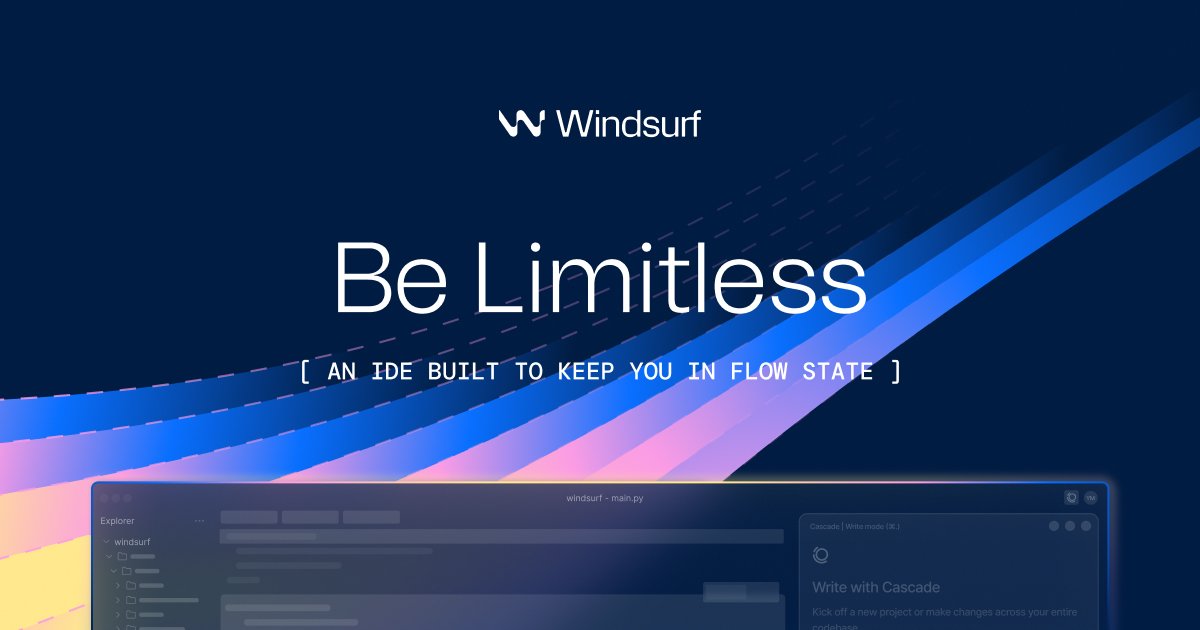
Windsurf’s Cascade agent represents an emerging AI UX pattern: the agentic task tracker. When Cascade takes on a multi-step task — refactoring a module, writing tests, updating dependencies — it shows each step as it executes: which file it’s reading, what it’s about to modify, what it just changed. The UX translates AI “thinking” into a readable progress log, so users always know what’s happening and can intervene if the agent heads in the wrong direction. Task-state transparency is the core trust mechanism.
8. Cline — Agentic coding assistant with explicit permission gates

Cline builds explicit permission checkpoints into its agentic workflow — before writing a file, before running a terminal command, before making an external API call, it asks for confirmation. The design reflects a specific trust model: the AI is capable but should be supervised, especially for irreversible actions. These checkpoints slow down the workflow compared to fully autonomous execution, but they’re a feature for users who want to understand and approve what the AI is doing before it does it.
9. Continue — Open-source AI code assistant that plugs into existing editors

Continue integrates into VS Code and JetBrains IDEs as an extension, which means its UI is constrained to what extensions can do inside an existing IDE window. The design challenge is creating a coherent AI experience within the chrome of another product. Continue solves this with a dedicated sidebar panel that handles conversation history, model selection, and code references — enough surface area to be useful, not so much that it fights with the IDE’s own UI conventions.
10. Qodo — Code review AI embedded inside GitHub pull requests
Qodo has no standalone UI. The product lives entirely inside GitHub pull requests, surfacing AI-generated code review comments inline on diffs — the same location where human reviewers leave feedback. The design bet is zero-friction adoption: developers don’t need to learn a new tool or open a new tab. The AI shows up where the review already happens. The tradeoff is that the product’s UX is entirely constrained by what GitHub’s PR interface supports.





AI Workflow & Automation
11. Sema4 AI — Enterprise AI agent platform with workflow orchestration UI
Sema4 AI provides a platform for building and deploying AI agents in enterprise contexts — not a consumer chat interface, but a development and management surface for agent workflows. The UI balances two audiences: the developers building agents (who need configuration controls, API connections, and test environments) and the business stakeholders managing deployed agents (who need status dashboards, usage metrics, and output monitoring). The product is as much an operations platform as an AI tool.
12. Basis — AI-native accounting with financial intelligence surfaced in context
Basis approaches accounting automation with AI embedded throughout the workflow rather than bolted on as an add-on. Transaction categorization, reconciliation suggestions, and anomaly flags are surfaced inline as the user works through financial data, not as a separate AI panel to consult. The design goal is to make AI assistance invisible — it should feel like the product got smarter, not like the user has to coordinate with a separate AI feature.
13. Anything.com — AI-powered productivity with flexible canvas structure
Anything.com applies AI assistance to a flexible workspace surface that can hold tasks, notes, documents, and calendar items. The UX challenge is making AI feel native to a multi-format workspace where the user’s context switches rapidly between different content types. The product’s approach is to make AI available in-context regardless of what format the user is working in — the same prompt interface works whether you’re in a task list, a document, or a meeting note.
Key Patterns from 13 AI SaaS Products
1. Conversation history is the new file system. Every AI assistant in this analysis has converged on left-sidebar conversation libraries as the primary navigation pattern. This is a new UI convention being established in real time — the equivalent of the folder tree, but for AI sessions.
2. Streaming output requires new loading states. Traditional spinners don’t work when output arrives incrementally. The typing cursor, the progressively appearing paragraph, and the partial code block are all new UX primitives being standardized because AI output is a stream, not a response.
3. Agentic AI needs task-progress transparency. Products like Windsurf and Cline have surfaced a new UI pattern: the step-by-step execution log that shows what an autonomous agent is doing in real time. As AI agents take on more multi-step tasks, this pattern will become a standard trust mechanism.
4. Embedding beats standalone for developer tools. Cursor, Qodo, Continue, and Cline all integrate into existing developer environments rather than asking developers to switch to a new interface. The design principle: the best AI coding experience is one that doesn’t interrupt the existing workflow.
5. Uncertainty requires explicit UI treatment. The products that build trust most effectively are the ones that surface AI limitations visibly — source citations, confidence hedges, refusal states, and permission checkpoints. Hiding model uncertainty creates a false sense of reliability that erodes trust when the AI is wrong.
Frequently Asked Questions
Why do AI SaaS products all have similar left-sidebar conversation histories? Because conversations are the primary artifact in these products, and users need to return to past work. The left sidebar is the closest existing UI pattern to what’s needed — it’s how file explorers, email clients, and chat apps all organize historical content. AI products adapted it because it maps to user mental models for “finding something I worked on before.”
What’s the hardest UI problem unique to AI products? Representing uncertainty. Traditional software either works or errors. AI output exists on a spectrum of reliability — a model can confidently state something incorrect, partially hallucinate details, or produce an answer that’s technically right but missing important context. Designing UI that signals this uncertainty without undermining user confidence in the product is one of the genuinely unsolved problems in AI UX.
Should AI tools be embedded in existing workflows or standalone products? It depends on the use case and user. Developer tools have strong evidence that embedded wins — Qodo inside GitHub PRs, Continue inside VS Code, Cursor as an IDE wrapper. Consumer and knowledge-worker AI tools have evidence that standalone can work when the AI use case is broad enough to justify a dedicated context switch. The rule of thumb: if the AI assists a specific, recurring task in an existing tool, embed it. If the AI IS the task, standalone works.
How do you design onboarding for AI products when the interface is an empty chat box? The empty chat box is one of the most common AI UX failure modes — it creates a blank-canvas problem where new users don’t know what to ask. The best solutions are: example prompt suggestions surfaced at launch (ChatGPT’s starter prompts), task-specific templates that pre-fill the interface for common use cases, and onboarding flows that establish the product’s specific strengths before letting users go freeform.
Browse screenshots and user flow diagrams from AI-native SaaS products in the SaaS Boat library. See how the category is inventing new UI conventions in real time.